1. General
Magento 2 Shipit integrates Shipit with Magento 2 / Adobe Commerce store. It allows you to offer all Shipit shipping methods in the checkout with the pickup location search and print labels directly from the admin panel.
2. Installation
Module is installed just like any other Magento 2 module. Installation is done with Composer which makes the module easy to install and update.
Markup.fi has private Composer repository at https://repo.markup.fi. Repository contents are publicly viewable but downloading the modules requires license keys. License key can be found in the order confirmation email.
- Go to Magento’s root directory via terminal / CLI
- Define the repository in composer.json under repositories:
{
    "type": "composer",
    "url": "https://repo.markup.fi"
}
View this image to see what composer.json file should look like. Please note the comma after Magento’s repository but not after Markup.fi’s. The file has to be valid JSON.
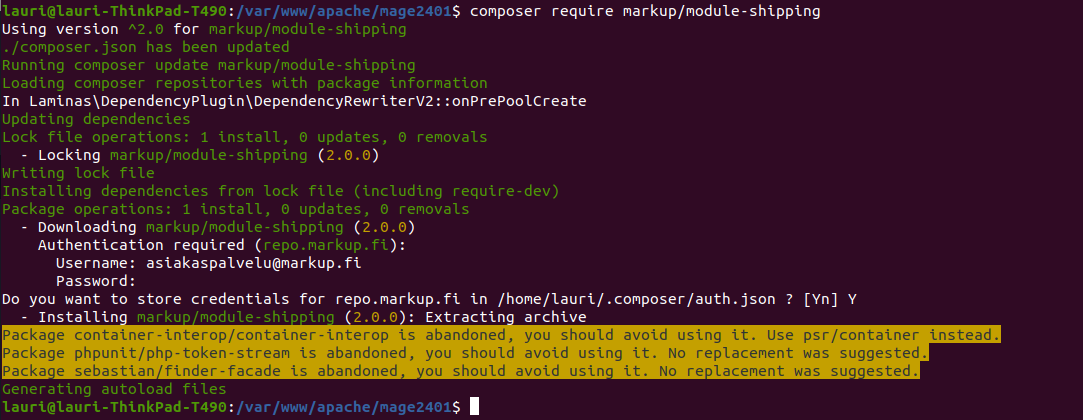
- Download Markup_Shipping, Markup_Shipit ja StringCalc modules from the repository. Markup_Shipping has general functionality shared across Markup.fi modules and it’s required. StringCalc is used for shipping method price formulas.
composer require markup/module-shipping
composer require markup/module-shipit
composer require chriskonnertz/string-calc
You will be asked to log in when downloading the modules. The username is the email address associated with the order and the password will be the license key. If you haven’t received a license key, it can be requested here.
- Enable modules and regenerate files:
php bin/magento module:enable Markup_Shipping
php bin/magento module:enable --clear-static-content Markup_Shipit
php bin/magento setup:upgrade
php bin/magento setup:di:compile
php bin/magento setup:static-content:deploy- Modules are now successfully installed. The next step is to configure the module through settings.
3. Settings
Settings are available at Stores > Configuration > Sales > Shipit.
3.1 General Settings
| License Key | License key for the module which can be found in the order confirmation email |
| Enabled for Checkout | Toggle Shipit shipping methods availability in the checkout |
| API Key | Shipit API Key |
| API Secret | Shipit API Secret |
| Mode | Mode, production or testing |
| Package Contents | Description about package contents, e.g. Consumer electronics |
| Displayed Error Message | Error message if shipping methods are not available |
| Show Method if Not Applicable | If shipping method should be displayed even if it’s unavailable |
| Sort Order | Sort order in which Shipit methods appear in the checkout |
3.1.1 Test credentials
The following test credentials can be used to test module functionality:
Mode: Testaus
API Key: CyL4/bhFJTWXJkti
API Secret: ozW1uIVxD+!N!+.)NWfQ?i<$8>f6h5+Z
3.2 Shipping Methods
Shipping methods are defined at Stores > Shipit > Shipping Methods:
- Go to Stores > Shipit > Shipping Methods > Add shipping method
- Enter the following settings and click Save
| Active | Toggle shipping method availability in the checkout |
| Admin Name | Admin description for the shipping method, e.g. Posti Postipaketti |
| Name | Shipping method name in the checkout, e.g. Postipaketti |
| Carrier Name | Carrier name in the checkout, e.g. Posti |
| Service | Carrier service the shipping method is for. This defines the shipping label that will be created for the shipping method |
| Pickup Location Search | Which pickup locations to offer for the shipping method (parcel lockers or service points or both). Only visible for applicable services. |
| Exclude outdoor pickup locations | Toggle outdoor pickup locations. Only visible for applicable services. |
| Pricing Method | Either flat rate / formula (e.g. 5+1*[weight]) or weight classes |
| Pricing | Pricing for the shipping method |
| Free Shipping Limit | Free shipping limit |
| Postcodes | Postcodes where the shipping method is available to. Leave empty to allow delivery to all postal codes. |
| Applicable Countries | Countries where the shipping method is available to. |
| Websites | Magento websites where the shipping method is available at. Leave empty to offer shipping method in all websites. |
4. Shipping Labels
Shipping labels can be created in two ways:
- Quick Ship feature which makes it possible to create shipping labels in just two clicks
- Magento’s native user interface for shipping
4.1 Quick Ship
Shipping label is created in the admin order view by clicking Quick Ship:
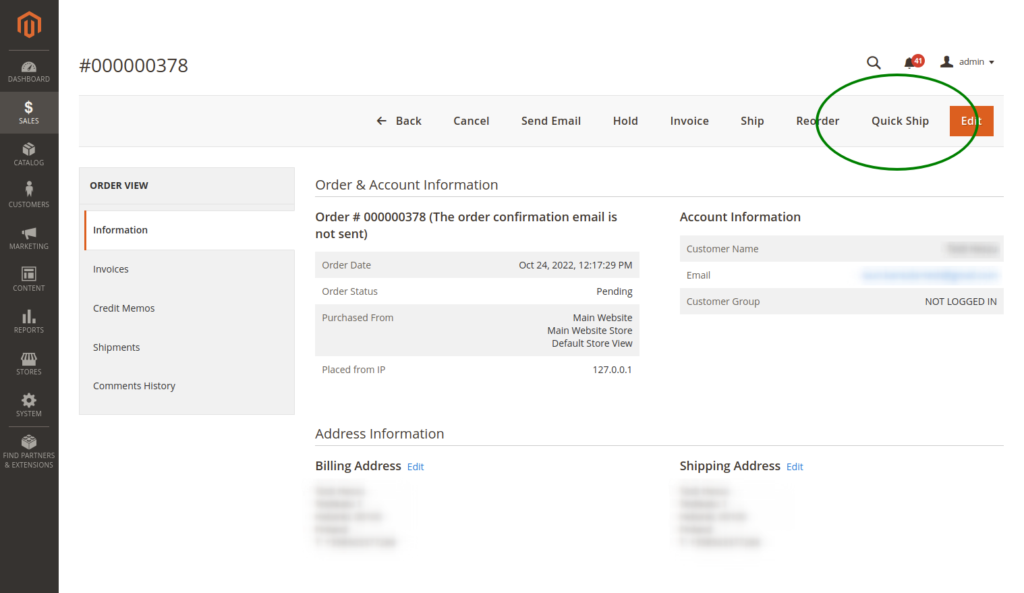
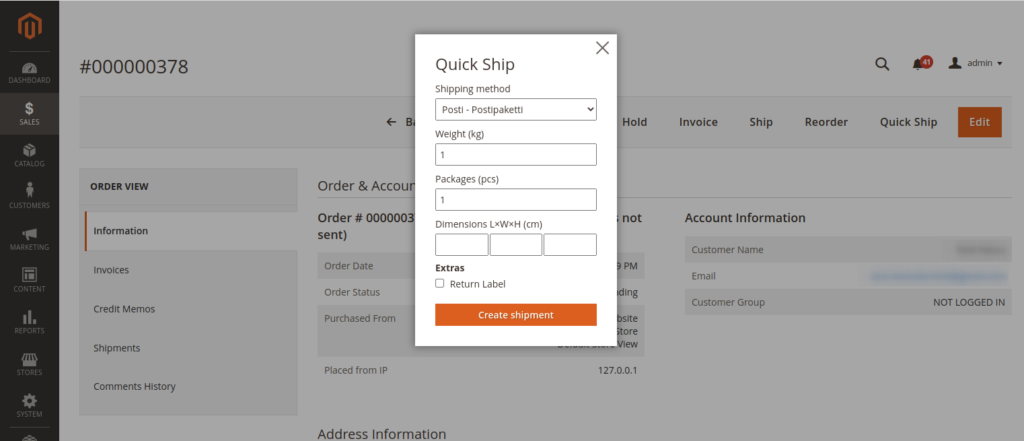
The module will select the default shipping method and calculate weight from the products. Dimensions are only required for some of the services. The shipping label will be created when clicking Create shipment.
4.2 Magento’s native user interface
You can also use Magento’s native user interface to create shipping labels.
- Go to Sales > Orders and select an order
- Click Ship
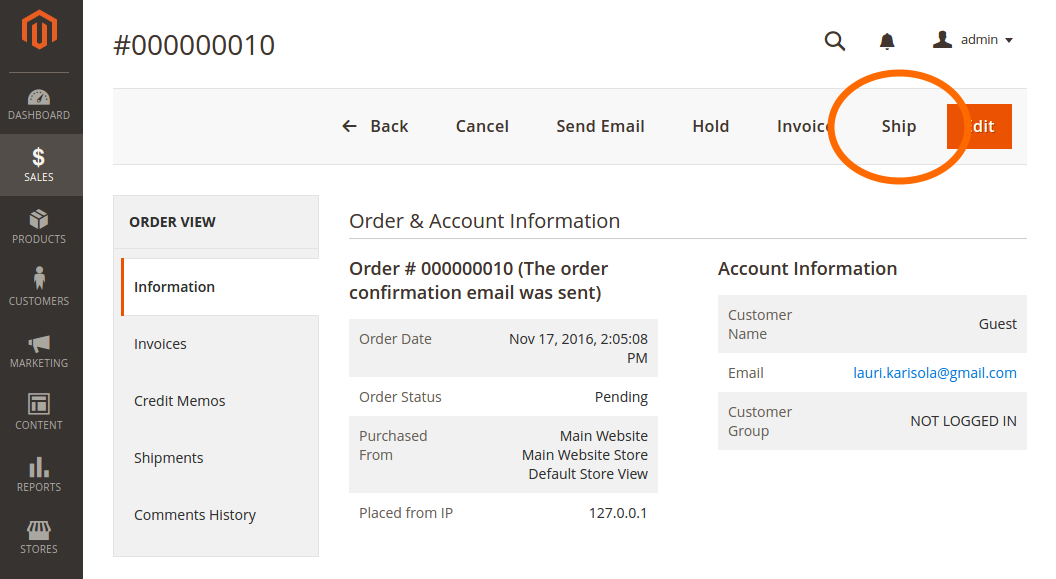
- After New Shipment page has opened, scroll to the bottom of the page and click Create Shipping Label. Click Submit Shipment
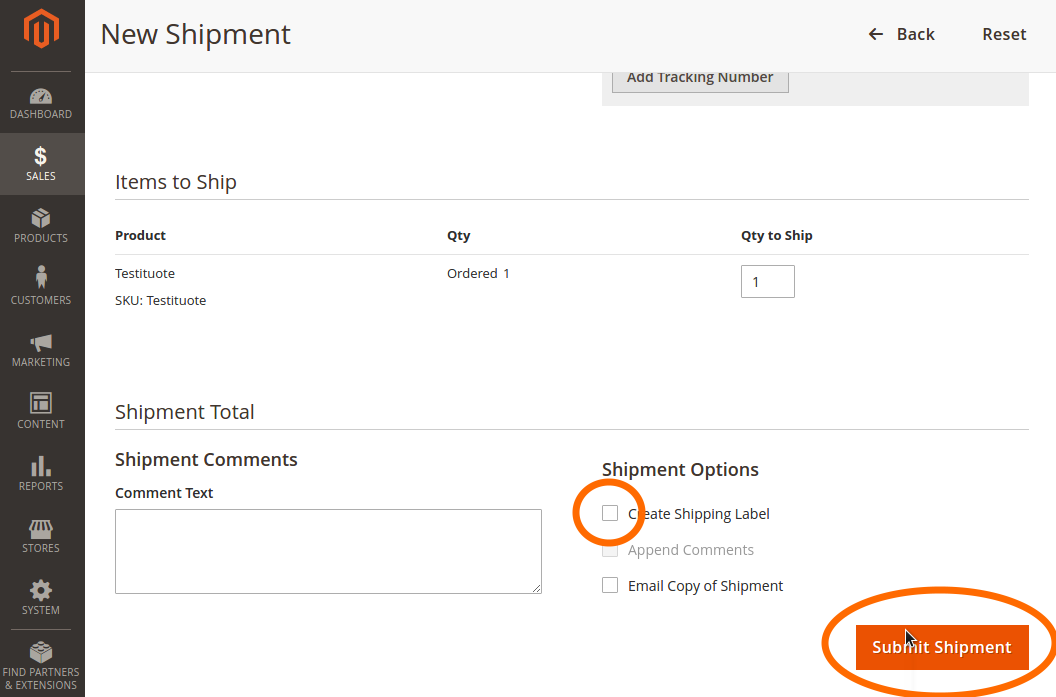
- Click Add Products to Package and select products for the package. Finally click Add Selected Products to Package.
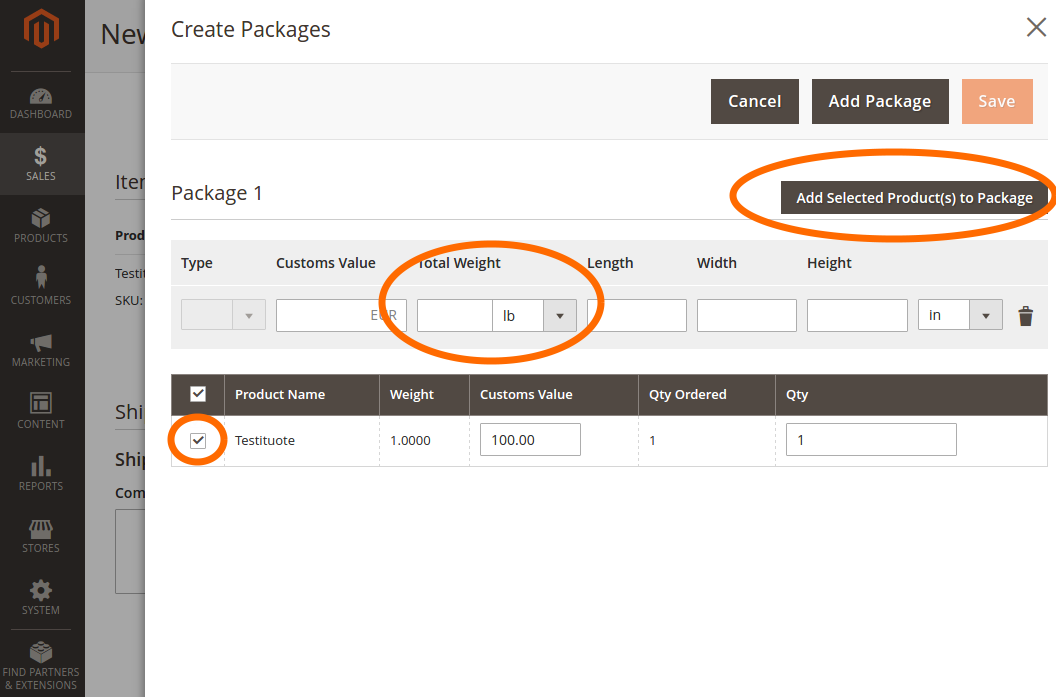
- Enter weight and dimensions for the package.
- Click Save. Shipping label will be created
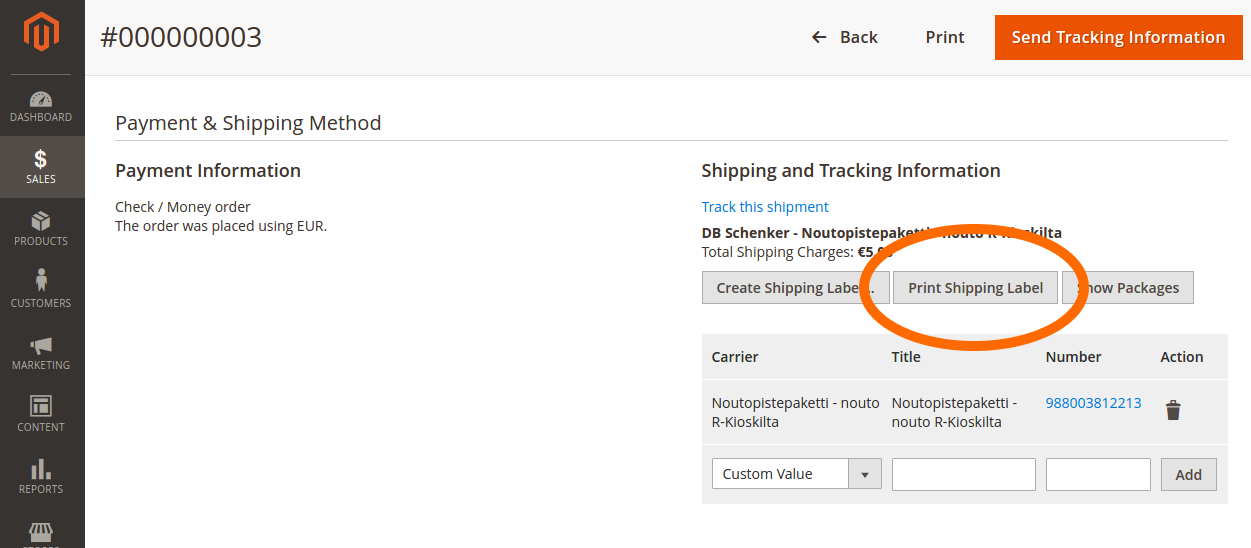
- Shipping label can be downloaded under Shipments:
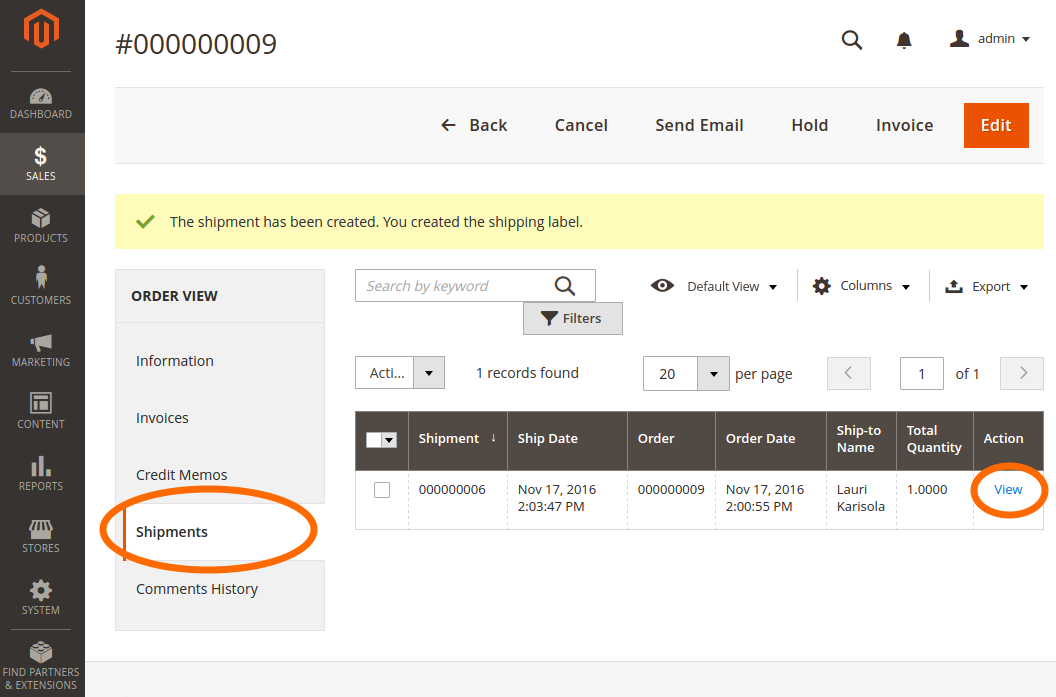
- Click Print Shipping Label
5. Customs information for shipments outside the EU
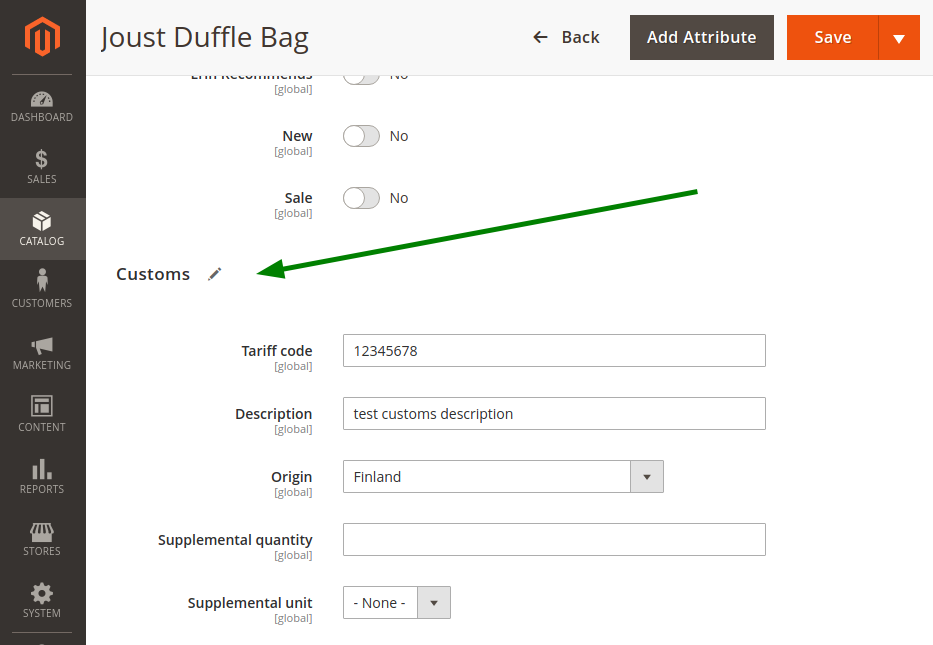
Customs information is required when shipping to destinations outside the EU. Shipit module will relay the information automatically but each product will need description, tariff code and origins country for customs. Information is entered in the product edit page under Customs: